After adding other gestures and functions in the settings, start the corresponding functions through gestures when the screen is off.
Setting method
realme UI 7.0 & 6.0: Settings > Accessibility & convenience > Gestures & motions > Screen-off gestures > Add gesture, select the gesture, and then select the corresponding function to complete the addition.
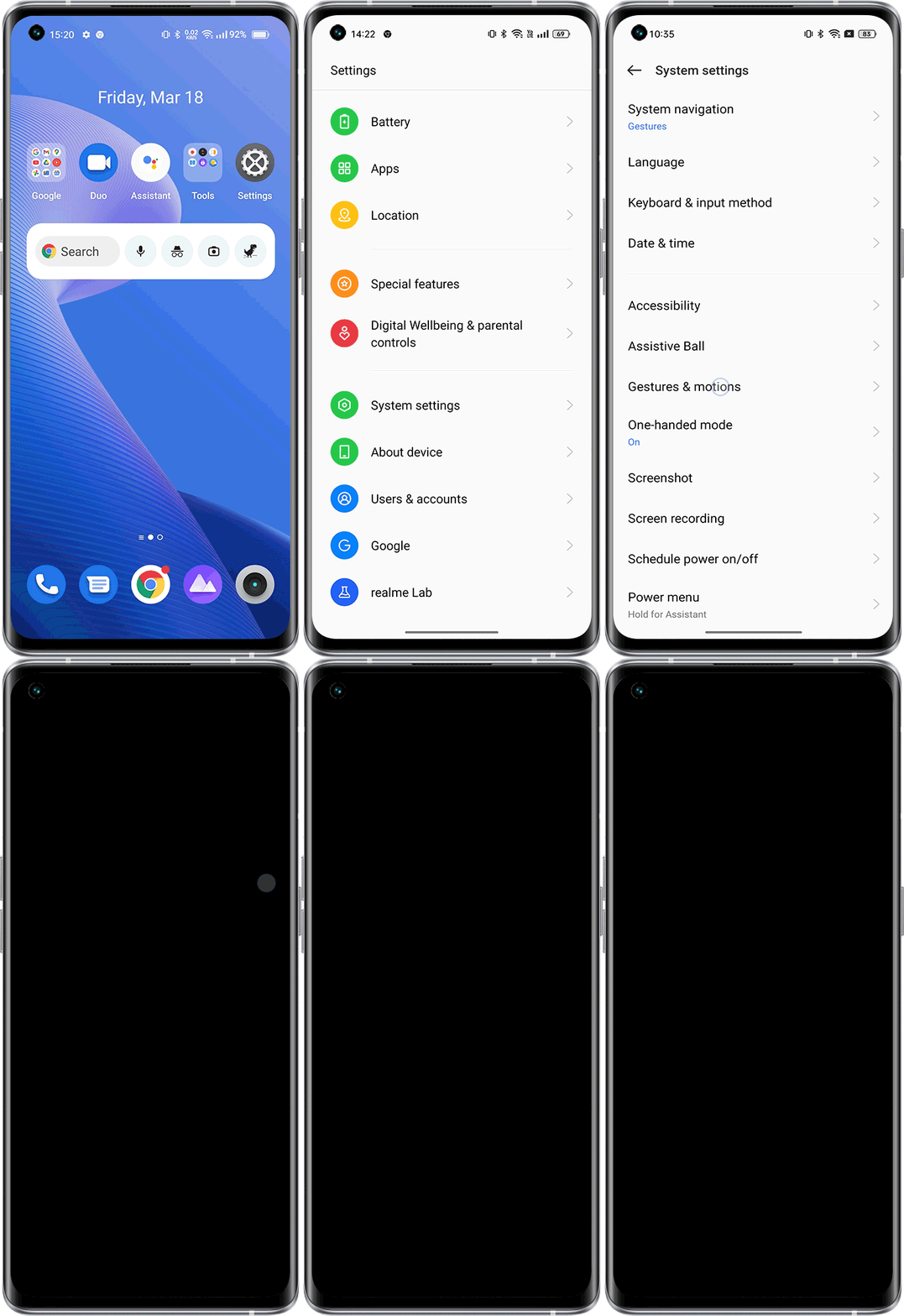
realme UI 5.0 & 4.0 & 3.0: Settings > System settings > Gestures & motions > Screen-off gestures > Add gesture, select the gesture, and then select the corresponding function to complete the addition.
realme UI 2.0 & 1.0: Settings > Convenience tools > Gestures & motions > Screen-off gestures > Add gesture, select the gesture, and then select the corresponding function to complete the addition.
realme UI U edition: Settings > Smart control > Screen off gestures > select the corresponding gesture
realme UI R & Go & S & T Edition: Not supported
Delete method
After adding a screen-off gesture, the added gesture will be displayed in More screen-off gestures, enter to modify or delete the gesture.