Unable to connect to Wi-Fi is usually caused by incorrect passwords, temporary router errors, or network congestion. It rarely indicates a hardware defect in your phone. Please follow the steps below to troubleshoot the issue. These solutions will help you restore your internet connection quickly.
I. Basic Connection and Router Checks
1. Forget the network and reconnect
If you cannot connect, the saved password might be incorrect or changed. Go to your Wi-Fi settings, tap the icon next to the network name, and select Remove this Network or Forget. After the network is removed, tap the network name again and carefully enter the correct password to reconnect.
2. Restart the router and modem
Routers can encounter errors or freeze after running for a long time. Unplug your router and modem from the power source, wait for at least 30 seconds, and then plug them back in. Wait for the router lights to stabilize and try connecting your phone again.
II. Phone System and Settings
1. Restart your phone
A simple restart clears the system cache and refreshes the wireless adapter. Press and hold the power button to restart your device. Once the phone turns back on, it will automatically attempt to connect to available networks.
2. Reset Network Settings
If the connection still fails, the network configuration files might be corrupted. Go to Settings, search for Reset Network Settings, and confirm the action. This operation restores Wi-Fi, Bluetooth, and mobile data settings to their factory defaults. This will delete saved Wi-Fi passwords but will not erase your photos, contacts, or apps.
3. Run Wi-Fi Diagnose Test
Please perform the Wifi Diagnose test (refer below) whether it’s Normal. If not please repeat step 2 and check again else go to the next step.
For realme UI 7.0 & 6.0 & 5.0: Phone manager > Click on the three dots at Right Top > Diagnostics > Select Connection test > Click Run Diagnostics to perform test > Check result.
For realme UI 3.0 & 4.0: Phone manager > Tool > Click on Diagnostics > Diagnostics > Select Connection test > Click Run Diagnostics to perform test > Check result.


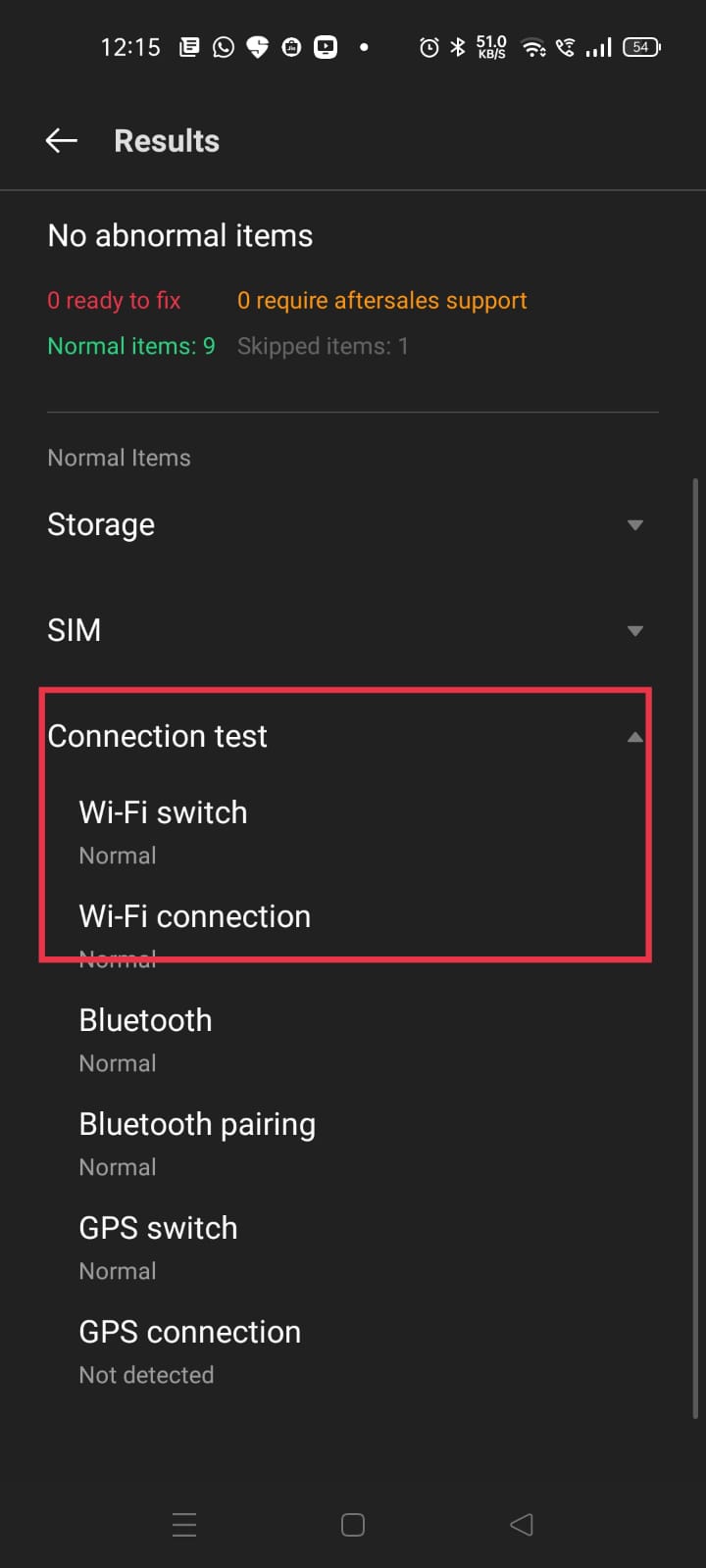
For realme UI 2.0 & 1.0: Phone manager > Click on Diagnostics/ Quick Check > Continue > Select Connection test > Continue to perform test > Check result.
Note: realme UI R & T & S & Go & U Edition does not support Diagnostics.
Note: The router setting path of each manufacturer is different; please consult the router for the settings.
If the issue persists after trying these steps, please back up your important data and visit an authorized realme Service Center with your proof of purchase for professional assistance.