Let's explore the Quiet Time of your realme Smartphone?
Learn about the features of Quiet Time.
What is Quiet Time?
1. With the realme smartphone's Quiet Time feature, you can silence your phone when you need privacy. You can even set it to a schedule, or allow only specific people to reach you.
2. When Quiet Time is enabled, you will not be notified about calls, messages, mails, upcoming events, and notifications except those that are permitted, and they will appear in the status bar.
*The alarm clock and countdown timer will not be muted.
Turn Quiet Time on
Swipe down from the very top of any screen to open the Control Center, then click to enable Quiet Time. You can also go to [Settings] > [Quiet Time].
Manually turn on Quiet Time: Toggle the [Enable Manually] slider to green.
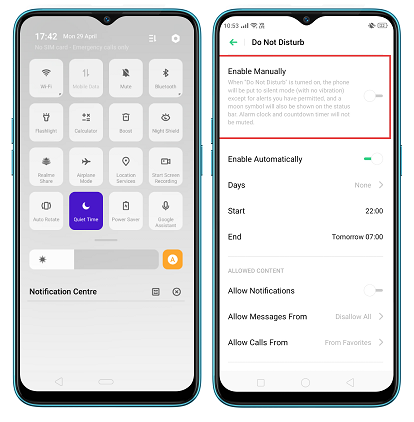
Schedule Quiet Time: If you want to set Quiet Time to automatically turn on at specific times, you can set a schedule for it. Toggle the [Enable Automatically] slider to green, and change the time when you want it to start and stop.
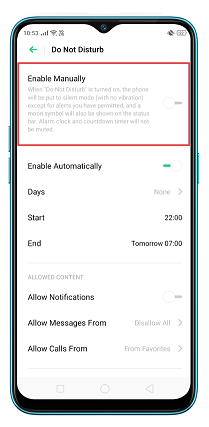
Set up allowed notifications
1. Allow notifications: You will be notified about system notifications during the scheduled time.
2. Allow messages and/or calls from: Allow messages and/or calls to come through from no one, everyone, contacts or favourites.
3. Allow repeated calls: Allow a call to come through if it rings for the second time in three minutes or less. This is useful for allowing people to reach you in emergencies.
Ring for Repeated Calls
Enabling this will make a second call from the same number to keep on ringing for 3 minutes.
*Pictures, settings, and paths might differ from those of your phone, but that does not affect the description in this article.